The band card
The band card in JustAnother EQ floats at the bottom of the graph, under the selected band. It contains the band’s settings and opens its Dynamics and Saturation panels. Select several bands to edit them together.
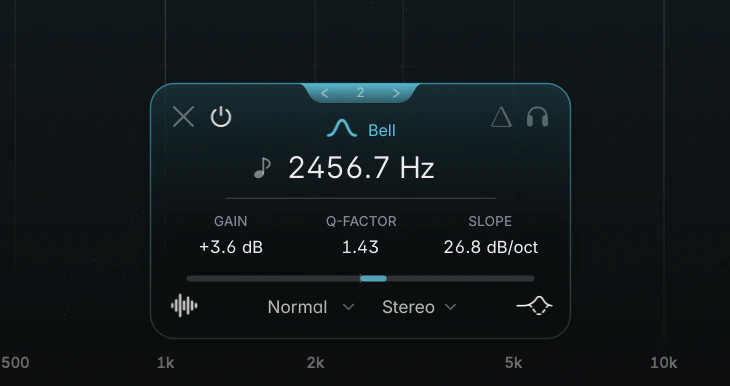
From top to bottom, the card shows:
- the band number on a tab at the top edge (click it to change the band’s colour);
- Remove Band (X) and Band Bypass (power) at the left, the shape in the middle, and Band Delta and Solo Band (headphones) at the right;
- the Frequency, then GAIN, Q-FACTOR and SLOPE in three columns, with a gain bar underneath;
- the saturation icon at the bottom left, the Signal Target and channel selectors in the middle, and the dynamics icon at the bottom right.
When saturation or dynamics are on, their panels attach to the left and right side of the card.
Shape
Click the shape name to choose one of the ten shapes. A new shape keeps the band’s Q and its slope in dB/oct; the details are on Filter shapes & slopes.
Frequency, GAIN, Q-FACTOR and SLOPE
| Control | Range | Default |
|---|---|---|
| Frequency | 10 Hz to 30 kHz (at most half the sample rate) | where you created the band |
| GAIN | -24 to +24 dB | 0 dB |
| Q-FACTOR | 0.025 to 40 | 1.00 |
| SLOPE | depends on the shape (see Slopes) | 12 dB/oct |
Drag, scroll and type them as described in Basic interaction, or double-click the GAIN, Q-FACTOR or SLOPE label to reset it. Click SLOPE to open the slope popup. GAIN shows “–” on shapes without gain, and Q-FACTOR shows “–” where Q doesn’t apply (Flat Tilt, shelves, cuts and All Pass at exactly 6 dB/oct, and Brickwall); the value is kept for when it applies again.
Channel and Signal Target
- The channel selector routes the band to Stereo, Left, Right, Mid or Side. See Stereo placement.
- The Signal Target selector lets the band process the whole signal (Normal) or only the Transient or Body layer. See Transient / Body split.
The icons
- Solo Band (headphones) lets you hear the frequency range the band affects, and Band Delta plays only what the band adds or removes. See Solo, Hold to Listen and Delta.
- Saturation (bottom left) works on Bell, Low Shelf and High Shelf, up to 3 bands at once. See Per-band saturation.
- Dynamics (bottom right) works on Bell, both shelves, Tilt Shelf and Flat Tilt. See Dynamic EQ.
- Pitch Tracking is the small note icon that appears left of the frequency when you hover that row. See Pitch Tracking.
The saturation and dynamics icons light up in the band’s colour when active, and are greyed out on shapes that don’t support them.
Editing several bands
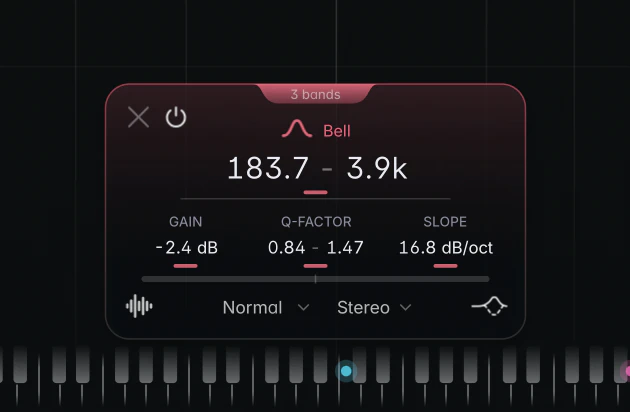
With two or more bands selected, the tab reads “3 bands” (or however many), and dragging a value changes every band:
- Frequency moves all bands by the same ratio.
- GAIN becomes GAIN OFFSET and adds the same number of dB to every band.
- Q-FACTOR becomes Q SCALE and multiplies every Q by the same factor.
- SLOPE becomes SLOPE OFFSET and adds the same dB/oct to every slope, each within its shape’s range.
The menus and the colour picker apply to all selected bands. Solo and Band Delta work on one band at a time.