Getting started
Make your first EQ adjustment, find your way around the interface, and learn the editing gestures used throughout JustAnother EQ.
Quick start
Before you begin, install and activate JustAnother EQ or start a trial.
1. Insert the plugin
Insert JustAnother EQ on a track or bus; most DAWs list it under JustAnother Audio. It runs in mono, stereo, or mono in, stereo out. If it doesn’t show up, see Installation.
2. Create a band
Start playback and double-click empty graph space. A band appears under the pointer, its shape picked by position: a Bell in the middle, a shelf near the far left or right, and a Low Cut or High Cut near the bottom corners. Its band card appears below it with the shape, frequency, gain, Q and slope.
3. Shape it
- Drag the band’s node (its dot) left and right for frequency, up and down for gain.
- Scroll over the node to make the band wider or narrower (Q). On a Low Cut or High Cut this changes the slope instead.
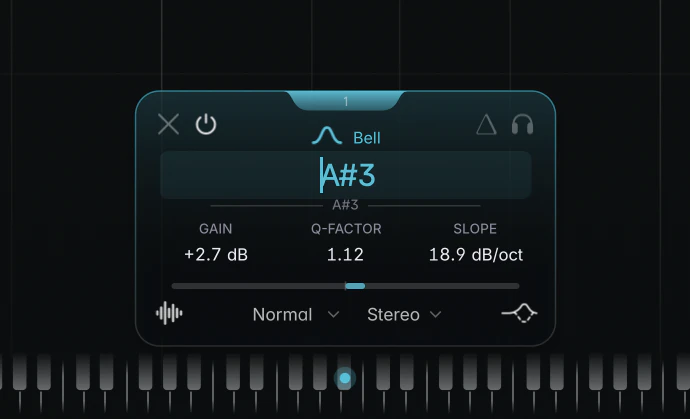
- Double-click a number on the band card to type an exact value, such as “2k” or “A4”.
- Double-click the node to bypass the band, and again to bring it back.
- Right double-click the node, or press Delete or Backspace, to remove it. Click Undo in the header to restore it.
For a vocal with excess low-mid energy, double-click around 250 Hz, drag the Bell down a few dB, then sweep it left and right to find the range to reduce.
4. Level-match and save
Switch on A (Auto Gain) under the Output knob in the header and compare with the Bypass icon (see Output, Auto Gain and Bypass). When you like the result, click the preset name in the header and choose Save Preset As… (see Presets).
Interface overview
The interface has one window. The graph fills it edge to edge, the header runs across the top, and the band card floats near the selected band.
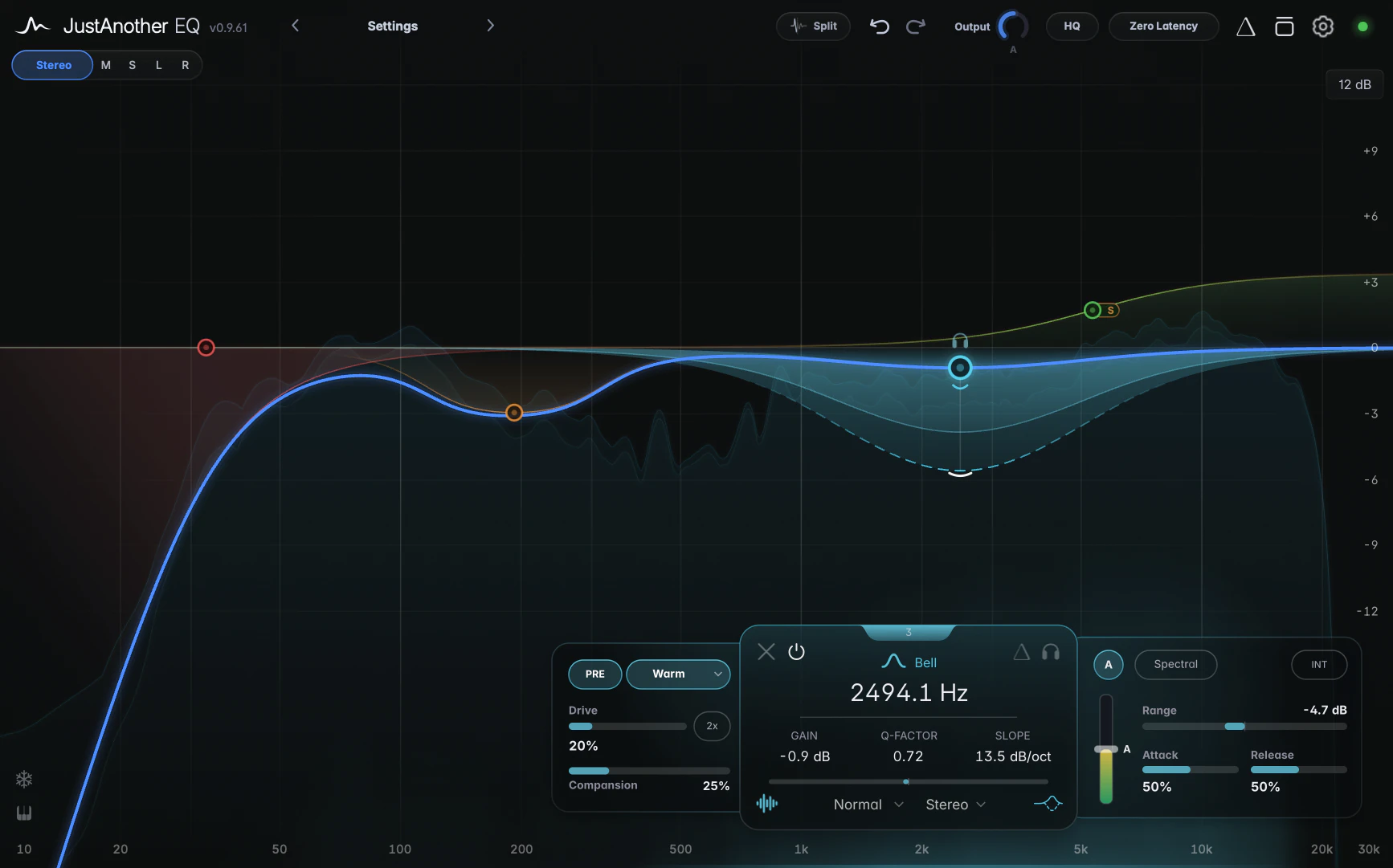
- Header, left. The logo, version number, any trial or update badge, and the preset navigator (the preset name with arrows either side). See Presets.
- Header, right. From left to right:
- the Split button, for the Transient / Body split;
- Undo and Redo (Undo and redo);
- the Output knob with its A (Auto Gain) button (Output, Auto Gain and Bypass);
- the HQ pill, shown only while a non-bypassed band has saturation on (HQ mode);
- the Processing pill, reading “Zero Latency” or “Linear Phase” (Processing modes);
- the Delta icon (Solo, Hold to Listen and Delta) and the Bypass icon (Output, Auto Gain and Bypass);
- the gear icon for Settings;
- the meter dot (Output meter).
- Channel Focus row. Below the logo: the Channel Focus bar (Stereo, Mid, Side, Left, Right), with a headphones button to listen to the focused channel. See Channel Focus.
- Graph. The spectrum analyzer, the EQ curves and one node (dot) per band. This is where you create, select and shape bands. See Working with bands and Graph display and zoom.
- Band card and side panels. The floating card below the selected band holds its shape, Frequency, GAIN, Q-FACTOR and SLOPE, plus icons for bypass, solo, dynamics, saturation and more. The Dynamics panel opens to its right, the Saturation panel to its left. See The band card.
- Hz ruler or Piano Roll. The strip along the bottom shows frequency labels, or a keyboard when the Piano Roll is on. Drag or scroll on it to zoom and pan.
- Bottom-left icons. The snowflake freezes the spectrum analyzer; the icon below it toggles the Piano Roll.
Interface tips
- Rest the pointer on almost any control for a hint explaining it.
- If the preset name disappears from the header, the window is too narrow: make it wider (see Window size and UI scale).
Basic interaction
Every value in JustAnother EQ, from a band’s frequency to a slider in a popup, responds to the same few gestures: drag, Shift to fine-tune, scroll, double-click and type. The feature pages only mention the exceptions.
Drag, fine-tune and scroll
- Drag vertically on the band card values, the Output knob and vertical strips such as the Threshold strip. Drag horizontally on the sliders in side panels and popups. Drags are relative: the value moves from where it was rather than jumping to the pointer. The exceptions are the sliders in Settings, the fader in the slope popup and the Quality rail in the Processing popup, which jump to where you click.
- Hold Shift while dragging or scrolling to fine-tune. The exceptions are a band node on the graph, where Shift locks the drag to one axis (see Shaping bands on the graph), and the Pitch Tracking Low and High limits, which use Alt (Option on macOS).
- Scroll over a value to change it. Over a band node the wheel changes Q (on a Low Cut or High Cut, the slope).
Double-click: type or reset
The rule: double-click a number to type it, double-click a slider track or a label to reset it.
- On the band card, double-click the Frequency, GAIN, Q-FACTOR or SLOPE value to type, or the “GAIN”, “Q-FACTOR” or “SLOPE” label to reset that value (0 dB, Q 1.0, 12 dB/oct).
- In the side panels and popups, double-click a readout to type, or the track to reset.
- The Output knob resets to 0 dB on double-click; it has no text entry.
Typing values
Press Enter (Return on macOS) or click elsewhere to confirm, and Esc to cancel. A decimal comma works too (“2,5” means 2.5).
Frequencies can be typed in several ways:
- in Hz: “250” or “250 Hz”;
- in kHz: “2k”, “2 kHz” or “2.5k”. A plain number below 10 is read as kHz, so “2” means 2 kHz;
- as a note name: “C5”, “A#3”, “Bb2”, optionally with a cents offset: “C#6+23”, “A4-15”. A4 is 440 Hz and C4 is middle C.
Gain is typed in dB (“-3”), Q as a plain number, and SLOPE in dB/oct, including in-between values such as “30”. On a Low Cut or High Cut, type “brick” for Brickwall.
Working on several bands
With more than one band selected, every edit on the card, in the panels and in the menus applies to the whole selection. When the bands differ, a short underline appears under the readout (hover it to see the range), and choices such as shape or channel read “Mixed”. Typing on the band card needs a single selected band; in the side panels, a typed value goes to all selected bands.
Hints, popups and keys
- Hover hints: rest the pointer on a control for a hint with its name, what it does and any modifier keys. Switch them off with Show hints in Settings.
- Popups and menus: opening one closes any other. Click outside it to close it.
- Keys: JustAnother EQ only takes keyboard focus once you click inside its window. Delete or Backspace removes the selected bands; every other key goes to your DAW, including undo, copy and paste.
Every gesture is listed on the Mouse and keyboard reference.
Where to go next
Continue with Working with bands, or explore Dynamic EQ, Transient / Body split, Per-band saturation and Pitch Tracking.