Spectral dynamics
Spectral mode adjusts individual frequencies within a dynamic band. Instead of moving the whole band, it reduces peaks that stand out above neighbouring frequencies, each by its own amount. It can treat resonances that change frequency between notes, such as in a vocal.
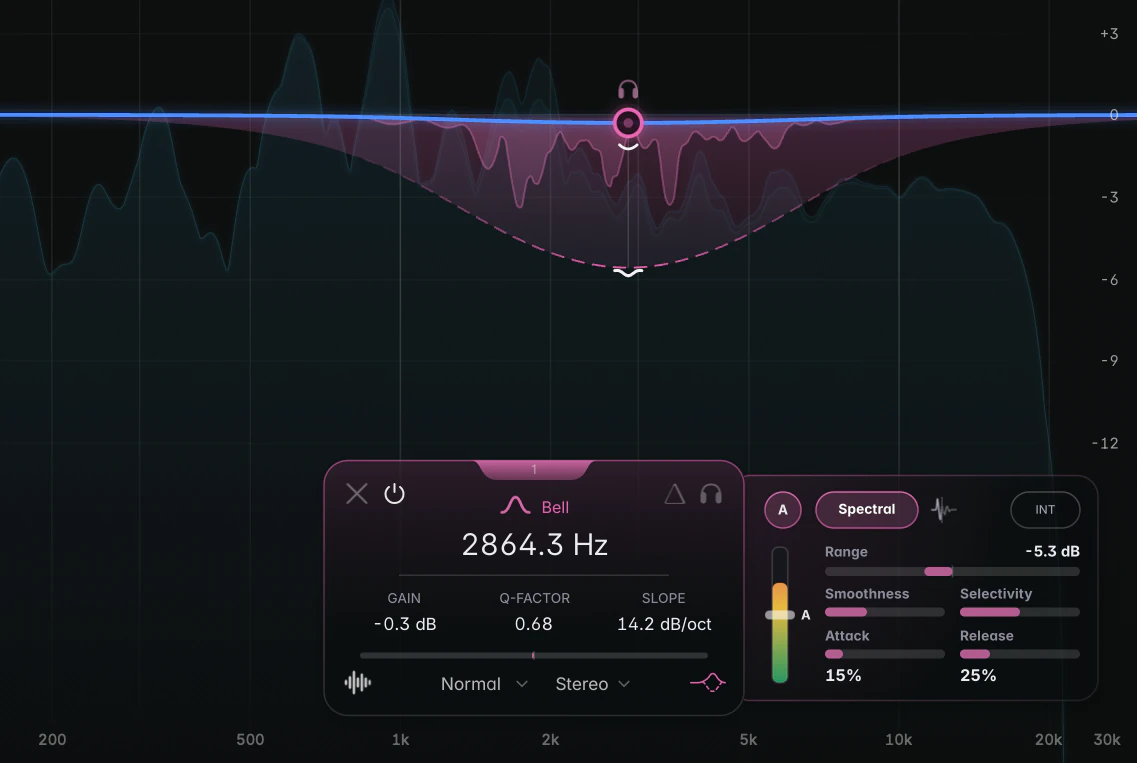
To switch a dynamic band to Spectral, click the Spectral pill in the Dynamics panel, or Alt+drag (Option+drag on macOS) the Range handle of a band that isn’t dynamic yet. On the graph, a ridge inside the band shows which frequencies are being turned down, and by how much.
How Spectral listens
- It looks at shape, not loudness. Each frequency is compared with its neighbours, so a quiet passage with a sharp ring gets treated just like a loud one. That’s why the Threshold in Spectral mode means “how far a peak sticks out” (see The Dynamics panel).
- It stays inside the band. A Bell focuses on its centre and fades out toward its edges; a lower Q reaches wider. Shelves work on their shelf side, and tilts on both sides of their centre.
- It treats Range as a target depth. Typical peaks don’t use up the whole Range, and the last part of it is approached gently.
- Sustained resonances recover smoothly. Resonances held in reduction for longer let go more slowly than short peaks.
- A positive Range boosts the frequencies that stick out instead of cutting them, a little more gently than a cut.
Spectral Smoothness and Spectral Selectivity
Both sliders run from 0 to 100 %. Double-click either one to reset it.
- Spectral Smoothness (default 35 %) spreads each cut over neighbouring frequencies. Low values give narrow notches; higher values give broader dips and can reduce a hollow or notchy sound.
- Spectral Selectivity (default 50 %) sets which peaks are detected. Higher values target narrow, peak-shaped resonances; lower values also act on broader regions that stand out. If the band dulls the whole area, raise it; if it leaves a broader build-up alone, lower it.
Transient Focus
The Transient Focus icon, right of the Spectral pill, biases detection toward sharp attacks, so hits and consonants trigger the band more readily than sustained tones (off by default). Use it for harsh pick attacks, snare cracks or clicky consonants. It has nothing to do with the Transient / Body split.
Latency
Spectral dynamics add about 93 ms of latency at 44.1 kHz, which your host compensates automatically. In Linear Phase mode at Low, Medium or High Quality they usually add nothing extra. The latency comes with the Spectral setting itself: it stays while the band is bypassed or its dynamics are off. To remove it, switch the band back to Broadband or delete it. How it combines with other features is on the Latency page.
Tips
- Start with a wide Bell over the problem region and the default settings, then shape the result with Spectral Smoothness and Spectral Selectivity rather than narrowing the band. Turn on Band Delta to hear exactly what it removes.
- For zero latency while tracking, switch the band to Broadband. Switch back to Spectral for mixing if needed.