Filter shapes & slopes
Every band in JustAnother EQ has one of ten shapes. Choose it from the shape menu in the middle of the band card, or from the icon grid in a band’s right-click menu, which offers the six most common ones.
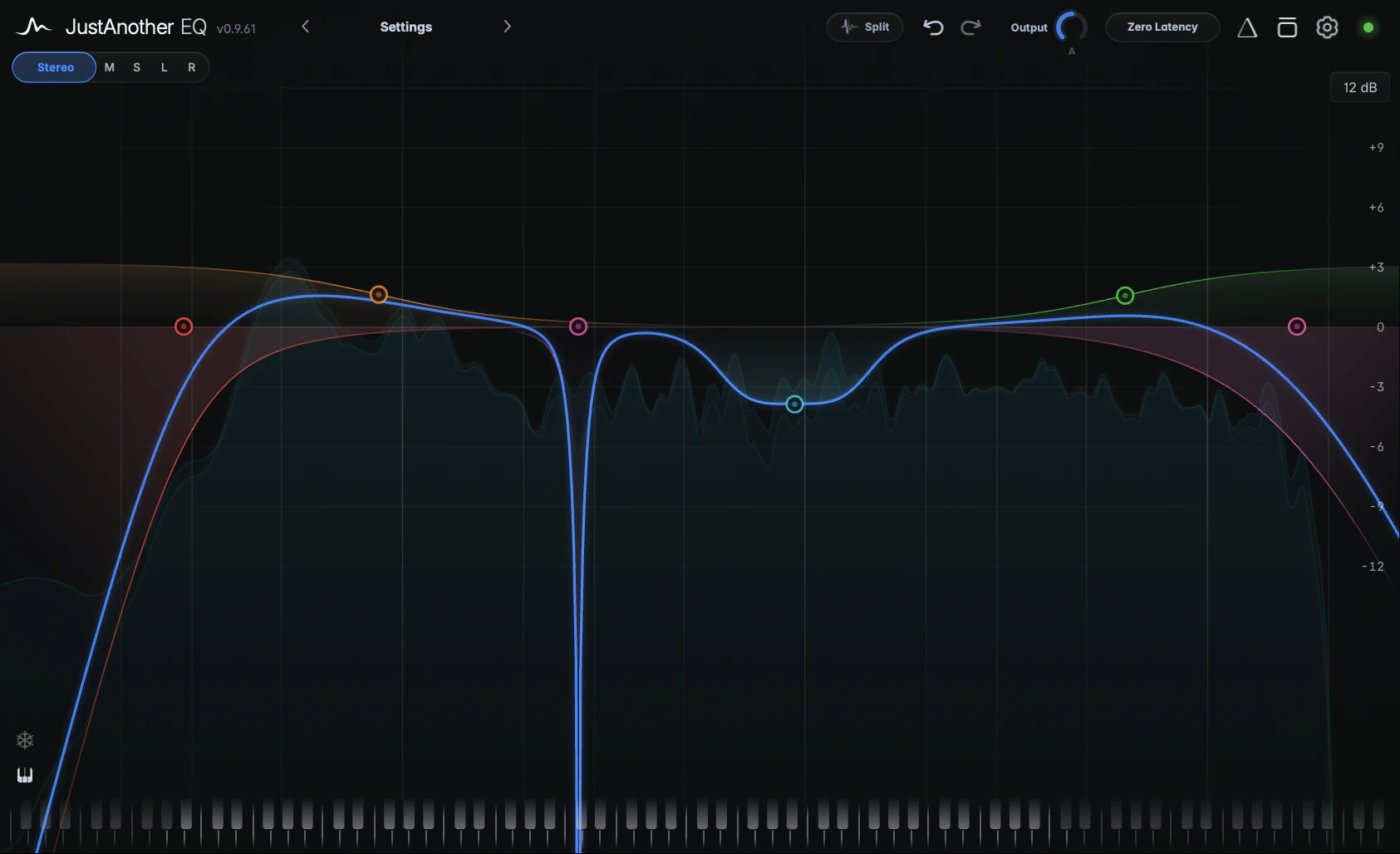
The shapes
- Bell boosts or cuts around its frequency, with Q setting the width. At 12 dB/oct it’s an analog-matched bell that maintains its shape near the top of the spectrum; steeper slopes make it flatter-topped (see Steep bells). Examples include a vocal presence boost or a cut in a snare’s low mids.
- Low Shelf and High Shelf raise or lower everything below (Low) or above (High) the frequency. Above 6 dB/oct, Q shapes the corner. Examples include adjusting bass level or a mix’s high end.
- Tilt Shelf is a low shelf and a high shelf working in opposite directions around the same frequency: +3 dB lowers everything below by 3 dB and raises everything above by 3 dB. It adjusts the balance between low and high frequencies.
- Flat Tilt is a straight, constant slope across the entire spectrum, pivoting through 0 dB at the band’s frequency. The full +/-24 dB gives +/-4.8 dB per octave.
- Low Cut and High Cut remove everything below (Low) or above (High) the frequency. At the default Q 1.0 they have a flat Butterworth response; raise Q for a resonant bump at the corner. Examples include reducing rumble below a vocal or hiss above a guitar’s range.
- Notch applies full-depth attenuation at its frequency; Q sets the width. Examples include mains hum or a ringing tom resonance.
- Band Pass keeps only the range around its frequency. It can create a “telephone” effect or isolate a frequency range for listening.
- All Pass leaves the level of every frequency alone and shifts the phase around its frequency. Higher slopes shift it further; Q sets how quickly. On the graph it draws its phase from -180° to +180° instead of a level curve. It can line up the phase of two microphones on the same source, or move a low end that is fighting another track.
Which controls each shape has
| Shape | GAIN | Q-FACTOR | SLOPE | Dynamics | Saturation | Solo |
|---|---|---|---|---|---|---|
| Bell | ✓ | ✓ | ✓ | ✓ | ✓ | ✓ |
| Low Shelf, High Shelf | ✓ | ✓ | ✓ | ✓ | ✓ | ✓ |
| Tilt Shelf | ✓ | ✓ | ✓ | ✓ | ✕ | ✕ |
| Flat Tilt | ✓ | ✕ | ✕ | ✓ | ✕ | ✕ |
| Low Cut, High Cut | ✕ | ✓ | ✓ | ✕ | ✕ | ✓ |
| Notch | ✕ | ✓ | ✕ | ✕ | ✕ | ✓ |
| Band Pass | ✕ | ✓ | ✓ | ✕ | ✕ | ✓ |
| All Pass | ✕ | ✓ | ✓ | ✕ | ✕ | ✕ |
Slope ranges and steps are listed below. On shelves, Tilt Shelf, cuts and All Pass, Q doesn’t apply at exactly 6 dB/oct or at Brickwall. Every shape can also use Pitch Tracking, and every shape except All Pass can use the Transient / Body split.
Slopes
SLOPE sets how steep a band’s curve is, in dB per octave. The range is 6 to 96 dB/oct depending on the shape, with continuous values between steps and a Brickwall setting for cuts.
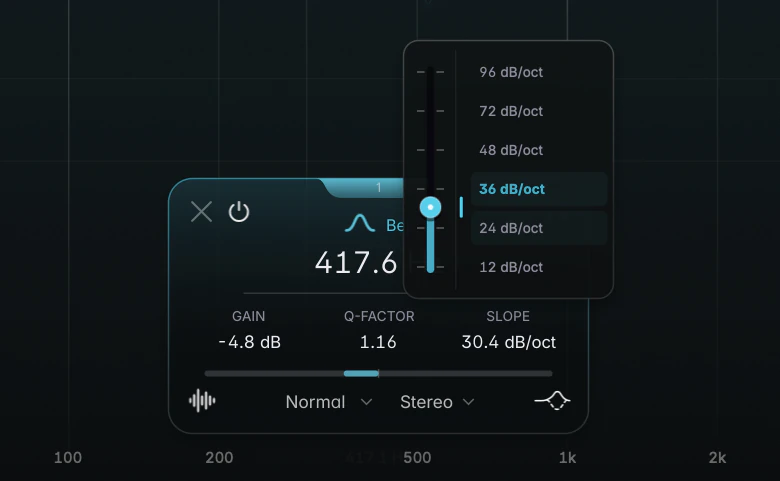
Slopes per shape
| Shape | Range | Slope steps |
|---|---|---|
| Bell | 12 to 96 dB/oct | 12, 24, 36, 48, 72, 96 dB/oct |
| Low Shelf, High Shelf, Tilt Shelf | 6 to 96 dB/oct | 6, 12, 18, 24, 30, 36, 48, 72, 96 dB/oct |
| Low Cut, High Cut | 6 to 96 dB/oct, plus Brickwall | every 6 dB/oct, then Brickwall |
| Band Pass | 12 to 96 dB/oct | every 6 dB/oct |
| All Pass | 6 to 96 dB/oct | every 6 dB/oct, no in-between values |
| Notch, Flat Tilt | no slope (SLOPE shows “–”) | - |
The slope is a continuous value: anywhere between two steps is a real in-between slope (except between 96 dB/oct and Brickwall), shown with one decimal, such as “30.0 dB/oct”. All Pass is the exception: it only uses the steps. Every band starts at 12 dB/oct, and slope changes never touch Q.
Setting the slope
- Click SLOPE on the band card to open the slope popup. Click a slope in the list, or click or drag anywhere on the fader for any in-between value.
- Press on SLOPE and drag straight away: the value follows your drag and the popup closes when you let go.
- Scroll over SLOPE to step through the slope steps.
- Double-click the value and type a number, for example “30” on a Bell for exactly halfway between 24 and 36. On a cut, type “brick” for Brickwall.
- On the graph, Alt+drag a node or use Alt+wheel (Option on macOS) for continuous changes; see Shaping bands on the graph.
- Double-click the SLOPE label to go back to 12 dB/oct.
Steep bells
At 12 dB/oct a Bell has a rounded peak. From 24 dB/oct up it gets a flatter top and steeper sides, squarer at each step up to 96 dB/oct. Q still sets the width. A steep bell applies a more uniform boost or cut within a region, with less effect on neighbouring frequencies. For example, a 2 dB cut across 300-600 Hz can reduce a snare’s low mids.
Brickwall
Brickwall is the last setting for Low Cut and High Cut: a cut far steeper than 96 dB/oct. Use it for a sharp cutoff, such as below the lowest note of a bass line. Q doesn’t apply (shown as “–”).
Switching shape
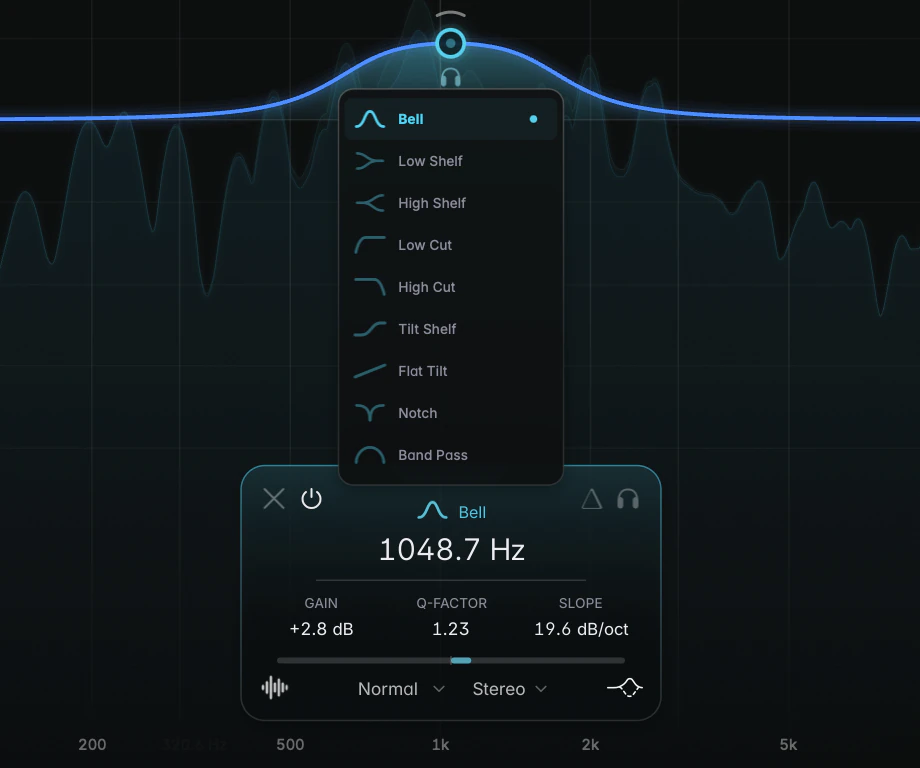
A new shape keeps as much of the band as it can. Q and the gain value are kept, and the slope keeps its dB/oct value within the new shape’s range, so switching back usually brings your old settings back. A band coming back from Notch or Flat Tilt, which have no slope, starts at its new shape’s gentlest slope. Saturation pauses on shapes that can’t saturate and returns when you switch back.
Two exceptions: picking Low Cut, High Cut, Notch, Band Pass or All Pass switches dynamics off, and switching back doesn’t turn them on again; and picking Tilt Shelf, Flat Tilt or All Pass releases a band Solo. All Pass also sets the Signal Target back to Normal.