Pitch Tracking Settings
The Pitch Tracking Settings popup controls pitch detection and how the band follows it. Hover the band card of a tracked band and click the tuning-fork icon to the right of the harmonic readout.
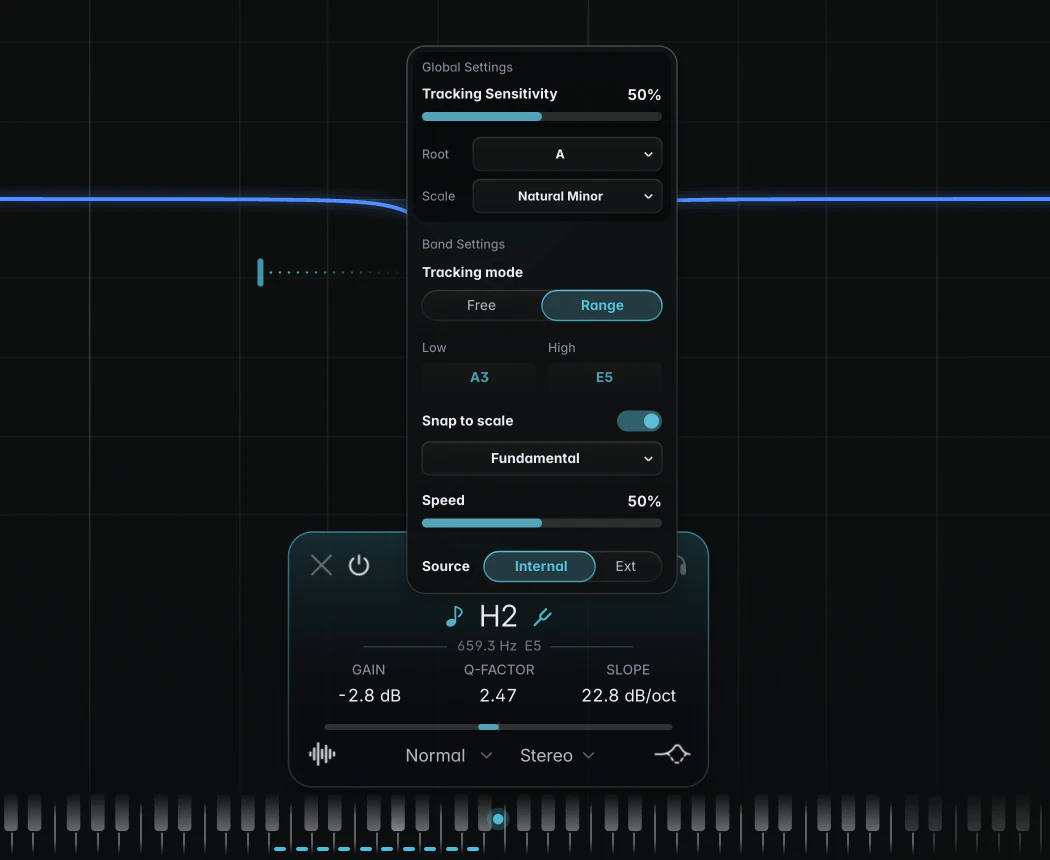
Global Settings at the top apply to every tracked band in this instance; Band Settings below apply to the selected band only.
Tracking Sensitivity
Tracking Sensitivity (0 to 100 %, default 50 %) is a global setting that decides how much evidence a new pitch needs to count as a new note. Lower values ignore grace notes, slurs and stray blips; higher values follow quick notes more readily, at the risk of chasing stray pitches. Start at 50 %. Lower it if the band follows ornaments or bleed; raise it for fast runs.
Tracking mode
- Free (default): the band follows detected pitches anywhere.
- Range: the band only moves inside a window between the Low and High limits. When the target leaves the window, the band holds its position and picks up again when the target comes back.
Use Range to keep a narrow cut within its intended frequency region, for example when an octave jump would move it into the presence range.
Low and High limits
In Range mode, the Low and High fields show each limit as a note, such as “C#6 +23”. Drag a field to move the limit in semitone steps, Alt+drag (Option+drag on macOS) for fine adjustment, or double-click to type a note or a frequency. The limits follow the harmonic, so if you change it, the window stays in the same musical place.
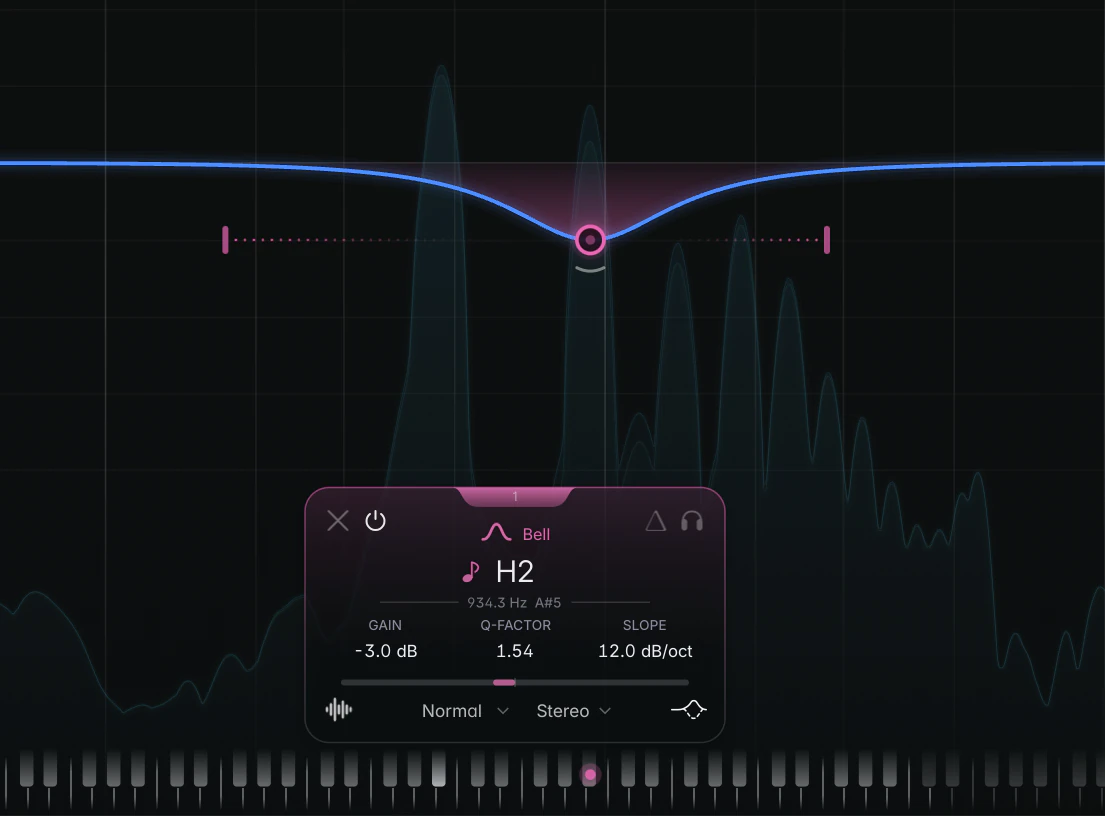
You can also set the limits on the graph: with a single tracked band in Range mode selected, two slim notches in the band colour mark Low and High. Drag them left or right, or double-click one to type a value.
Snap to scale
The Snap to scale switch makes the band step between the notes of a scale; see Scales and Snap to scale.
Speed
Speed (0 to 100 %, default 50 %) sets how closely the band follows the pitch. Low settings give smooth, portamento-like glides; high settings follow vibrato and fast runs more closely. Start at the default for sustained vocal and instrument resonances. Increase it for wide vibrato; reduce it if the band’s movement is audible.
Source
- Internal (the default): the band follows the plugin’s own input.
- External: the band follows the sidechain input, so it can follow another track’s melody. For example, key a cut in a synth pad from the lead vocal so the pad makes room for each sung note. See Using JustAnother EQ in your DAW for routing.
Tips
- Select several tracked bands to edit them together; the Low and High limits stay per band.
- All these settings are saved with your session and presets, but can’t be automated.