Installation & activation
Install JustAnother EQ for your platform, then activate a license or start a 10-day trial in your browser.
Requirements
| macOS | Windows | |
|---|---|---|
| System | macOS 12 (Monterey) or later, Apple Silicon or Intel | Windows 10 or 11, 64-bit |
| Formats | AU, VST3, AAX | VST3, AAX |
| Sample rates | 44.1 kHz to 192 kHz | 44.1 kHz to 192 kHz |
macOS installation
- Close your DAW.
- Double-click the
.pkginstaller and follow the steps. - Enter your administrator password when asked. The plugin is installed for all users.
The installer puts each plugin format in its standard system folder, where your DAW looks for it:
- AU:
/Library/Audio/Plug-Ins/Components/JustAnother EQ.component - VST3:
/Library/Audio/Plug-Ins/VST3/JustAnother EQ.vst3 - AAX:
/Library/Application Support/Avid/Audio/Plug-Ins/JustAnother EQ.aaxplugin
Windows installation
- Close your DAW.
- Run the setup program and accept the license agreement. Windows asks for administrator permission, because plugins are installed for all users.
- Choose Full installation, or Custom installation to pick just the VST3 or AAX version.
The files go to:
- VST3:
C:\Program Files\Common Files\VST3\JustAnother EQ.vst3 - AAX:
C:\Program Files\Common Files\Avid\Audio\Plug-Ins\JustAnother EQ.aaxplugin
If SmartScreen warns about the installer, click More info > Run anyway.
After installing
Open your DAW. Most hosts find new plugins on their next start; if yours doesn’t, run its plugin scan. JustAnother EQ is listed under the manufacturer JustAnother Audio, and in Pro Tools you’ll find it in the EQ category.
Activation and trial
The first time you open JustAnother EQ, the license screen appears over the interface. Activation happens in your web browser, with no license key to type. A license or a 10-day trial is required.
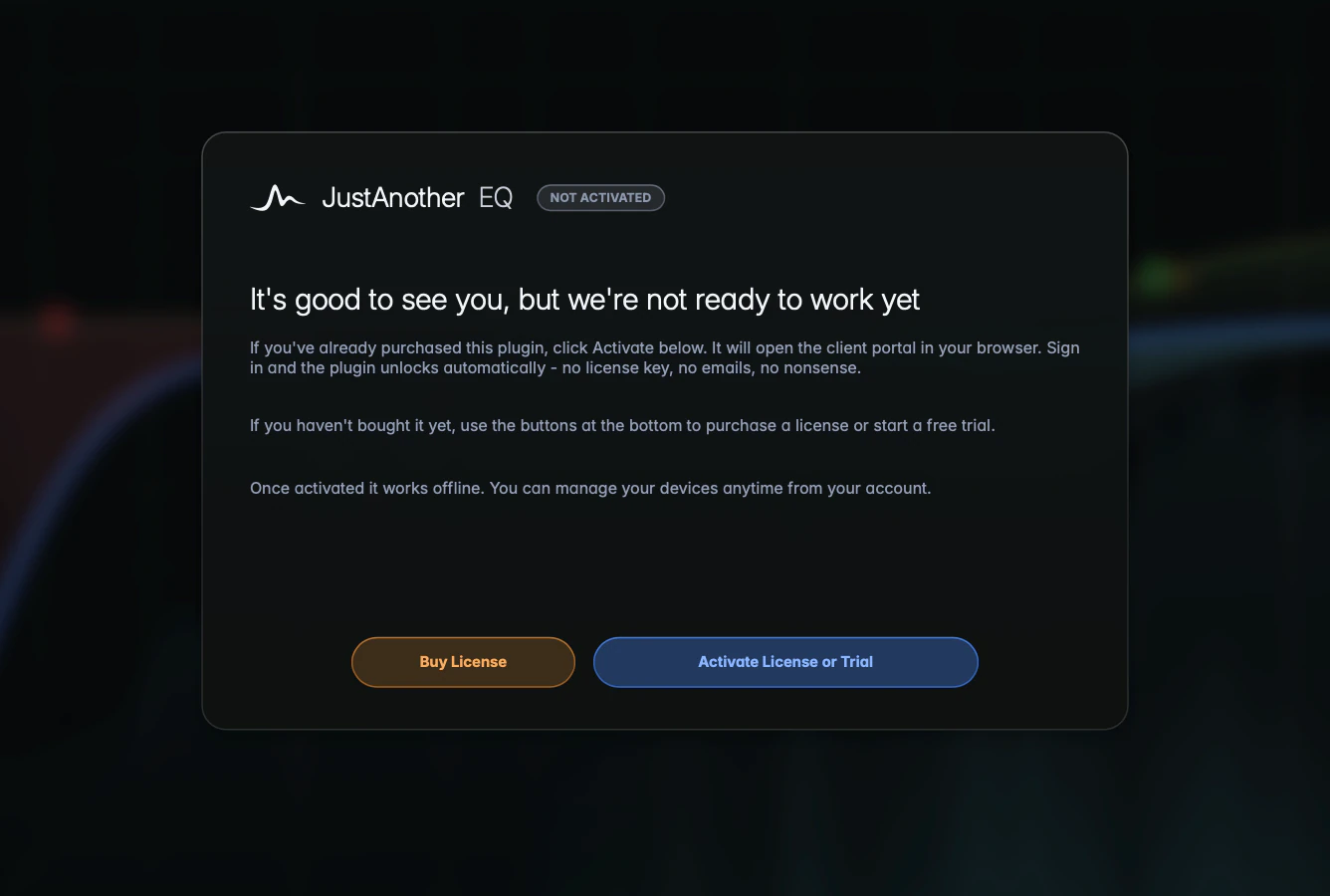
Activating a license or starting a trial
Both go through the same button:
- Click Activate License or Trial. The client portal opens in your default browser.
- Sign in there (create an account if you need to) and activate your license, or start a trial.
- Leave the plugin window open. The license screen shows “Waiting for browser” and updates by itself once the activation is detected.
Buy License opens the product page on justanother.audio.
The trial
The trial runs for 10 days and needs an account. Each computer gets one trial, and it can’t be restarted. During the trial, an orange Trial badge in the header shows the days left; click it to buy, activate or manage your account.
When the trial ends, the license screen comes back until you activate a license. Without a valid license or trial, the audio goes silent at regular intervals.
Checking or moving your license
Open the license screen at any time with Settings > License. When activated, it shows your user, License ID and version.
- Manage Online opens your account, where you can manage your activated computers. One license covers two computers.
- Deactivate releases this computer, for example before you move to a new one. It works immediately, without a confirmation step.
Offline use and license checks
Once activated, JustAnother EQ works offline between license checks. Connect to the internet at least once every 14 days, or the plugin may deactivate.