Presets
The preset navigator in the JustAnother EQ header, right of the version number, saves your whole EQ setup under a name and recalls it in any session or DAW. Presets are plain files, so you can back them up, share them or copy them to another computer.
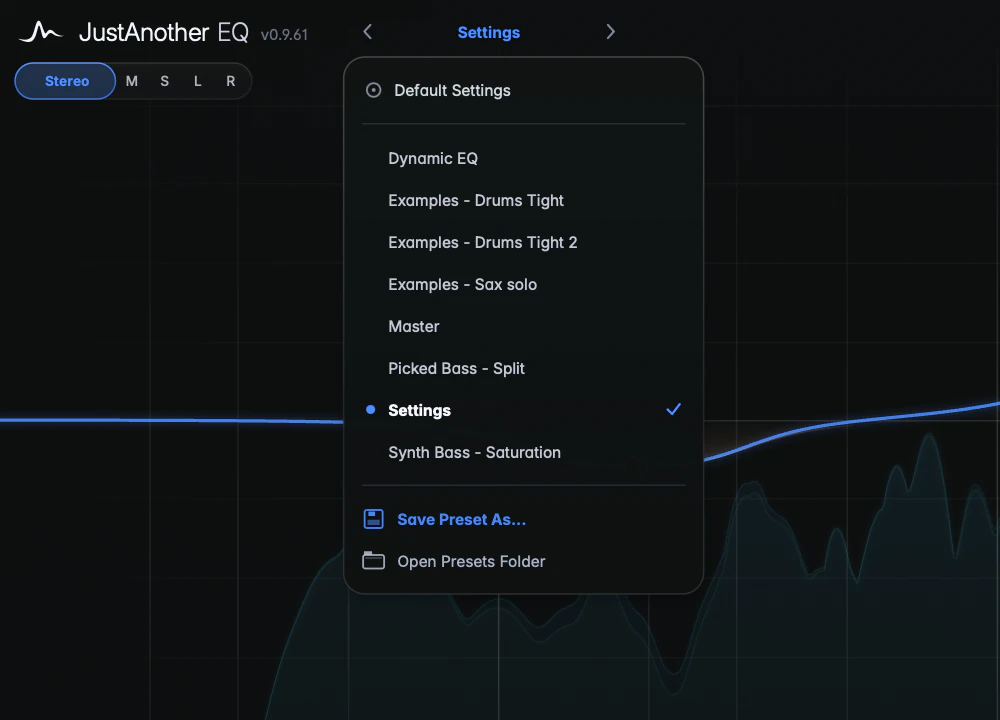
Loading presets
- Click the preset name to open the dropdown, then click a preset to load it.
- Click the arrows either side of the name to step to the previous or next preset.
- Choose Default Settings to go back to a flat EQ with no bands.
Loading a preset can be undone like any other edit (see Undo and redo).
Saving presets
Choose Save Preset As… in the dropdown, type a name and click Save. The new preset appears in the dropdown straight away.
Where presets are stored
Each preset is a single .JAEQ file. Open Presets Folder in the dropdown shows the folder in Finder or Explorer:
- macOS:
~/Library/JustAnother/JustAnother EQ/Presets/ - Windows:
C:\Users\<your name>\AppData\Roaming\JustAnother\JustAnother EQ\Presets\
Copy files from here to back up your presets or move them to another computer, and add files you receive to the same folder to use them.