Piano Roll
The Piano Roll replaces the Hz ruler with a piano keyboard aligned to the frequency axis, so you can place bands by musical pitch. Click the Piano Roll icon at the bottom left of the graph, just below the snowflake, to switch it on or off.
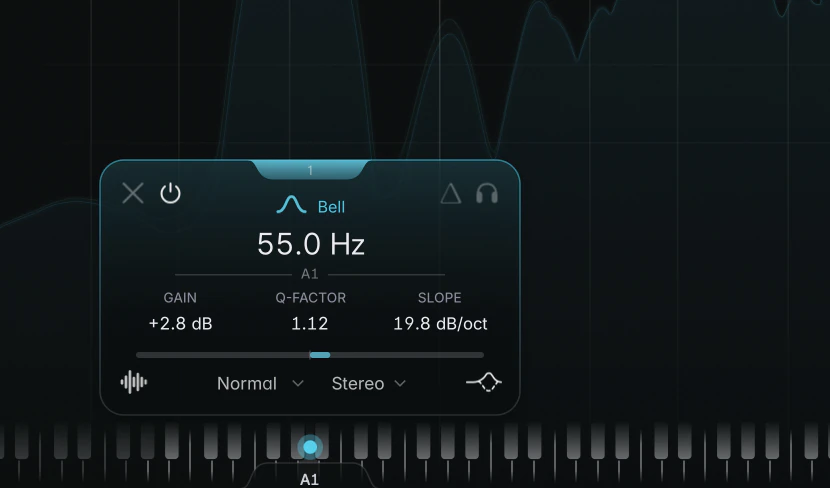
The keyboard follows the graph’s zoom; C4 is middle C and A4 is 440 Hz.
- Double-click a key to create a band exactly on that note.
- Drag the band marker (the coloured dot the selected band shows on the keys) to move the band in semitone steps, landing on the centre of each note. With several bands selected, the whole selection moves by the same number of semitones.
- Read notes: hover the graph to see the note and cents under the pointer, such as “A4 +12”. The band card shows the band’s note on the line under its frequency.
- See the tracked note: while a band uses Pitch Tracking, the key of the detected note lights up, and with Snap to scale on, the allowed notes are marked (see Scales and Snap to scale).
Tips
- Your Piano Roll choice is remembered, so new instances open the same way. Turning on Snap to scale switches it on automatically.
- With the Piano Roll showing, double-clicking the keyboard creates a band instead of resetting the zoom. To zoom out, drag or scroll on the keyboard.