Output meter
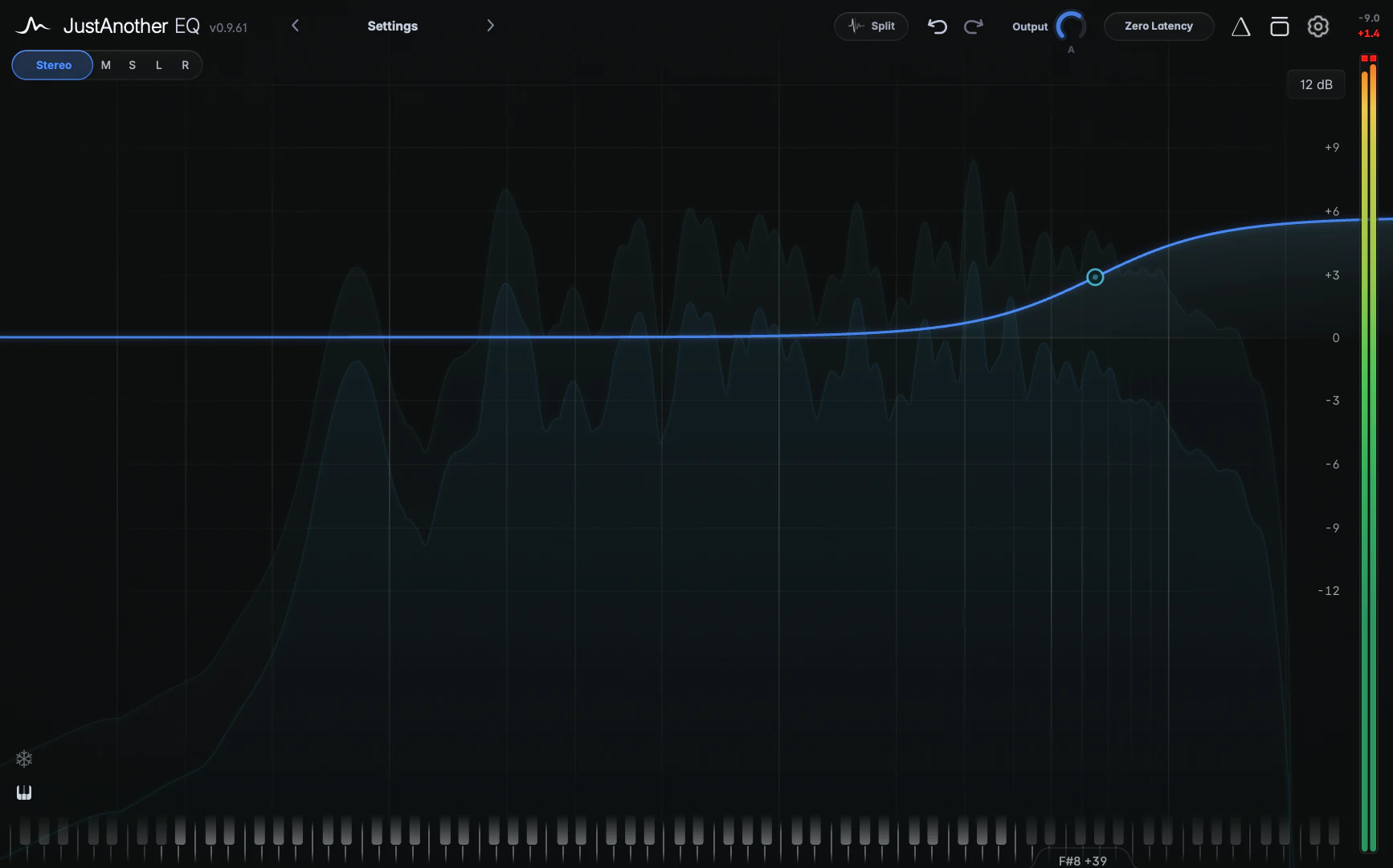
The output meter sits at the far right of the header as a dot indicating the output peak level. Click it to open an L/R peak meter with input and output readouts along the right edge of the window.
The meter dot
The dot changes colour with the output peak, from green through yellow and orange to red at or above 0 dBFS.
The expanded meter
Click the dot to open the meter column; the graph narrows to make room. Click the readouts at the top of the column to close it again. Your choice is remembered, so new instances open the same way.
- Input peak (top readout, dimmed): the input level, before any processing.
- Output peak (below it, white): the output level, after everything. It turns red when the output reaches 0 dBFS.
- L/R bars, one per output channel, with a peak tick that holds the highest recent peak. A clip shows as a red cap at the top. The bars span the same range as the analyzer (the Range setting in Settings).
What it measures
The meter shows sample peak levels, not true peak, RMS or loudness (LUFS). For delivery specs, put a dedicated true-peak or loudness meter after the plugin. The output is read after every stage, including Output, Auto Gain, Bypass and any Solo or Delta, so the meter shows what you hear.
Tips
- Compare the two readouts while you EQ: if the output reads several dB above the input, pull down the Output knob or switch on Auto Gain (see Output, Auto Gain and Bypass).