Channel Focus
The Channel Focus bar in the header, on the second row at the left, chooses the displayed channel: Stereo, Mid, Side, Left or Right. The curve, analyzer and band nodes follow it. The headphones next to it let you hear that channel on its own.
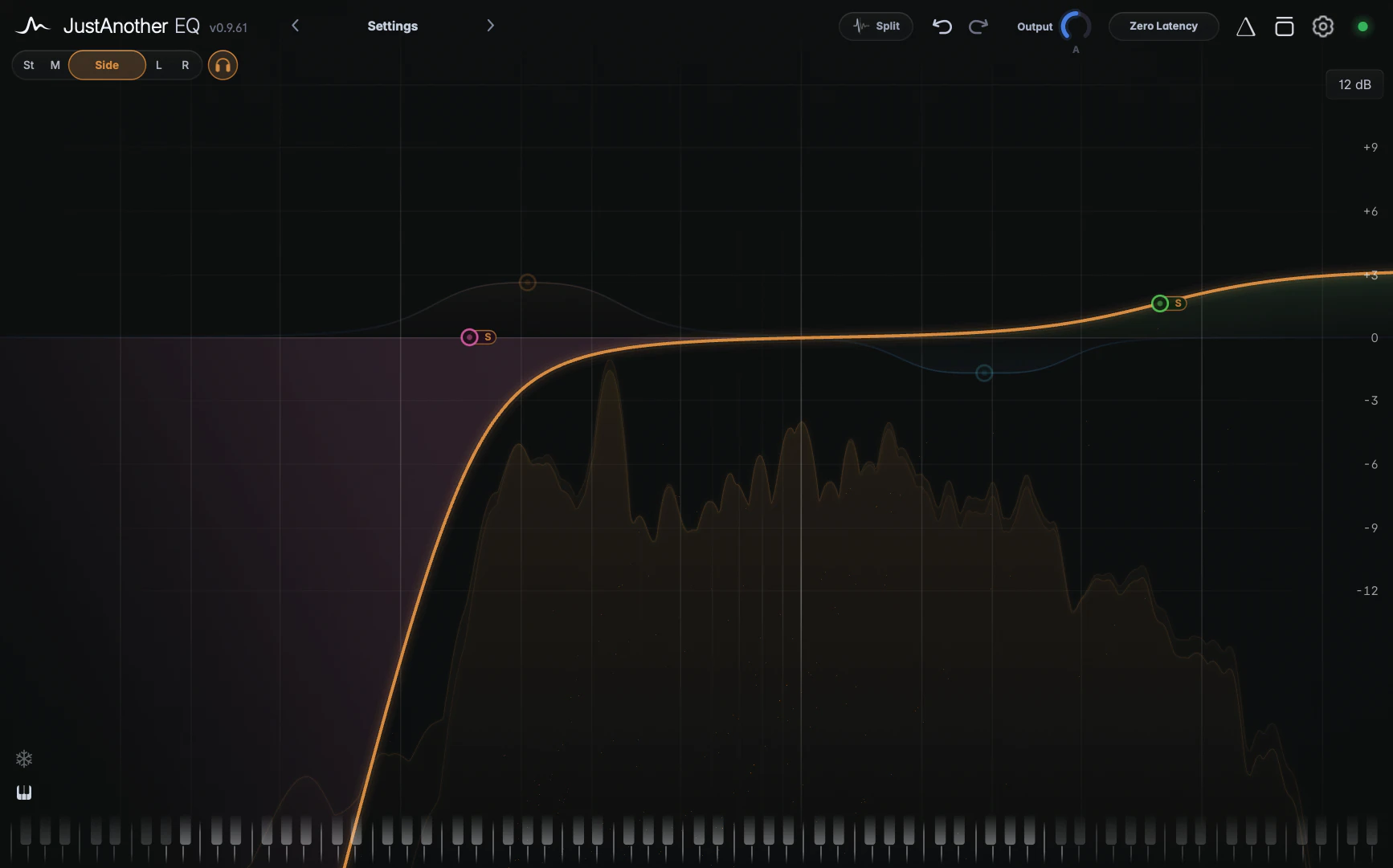
What focus changes
Click Stereo, Mid, Side, Left or Right. With a channel focused:
- The analyzer shows that channel.
- The curve of that channel is drawn bright; other channels fade into the background.
- Bands on other channels dim and can’t be grabbed on the graph. In the Stereo view every band stays active.
- New bands are created on the focused channel.
The focus also follows your work: start editing a band on another channel and the focus jumps back to Stereo. Per-band routing is covered in Stereo placement.
Transient and Body focus
Hover over the focus bar and a small menu with Transient and Body drops down. Choose one to focus that layer on top of the channel, for example Mid plus Body: bands on other layers dim, and new bands are created on that layer (the first one adds the split’s latency, unless Spectral dynamics already use that stage; see Transient / Body split). Click any channel segment to leave the layer focus.
Channel Listen
The round headphones button to the right of the bar appears whenever the focus is anything other than plain Stereo. Click it to hear only what you’re focused on:
- Left or Right: that channel only.
- Mid: the mid signal on both speakers.
- Side: the side signal, which sounds wide and hollow. That’s normal.
- Transient or Body: that layer, with the EQ of its bands but without your Normal bands.
Channel Listen plays the processed signal. It is one of the monitoring modes that exclude each other; see Solo, Hold to Listen and Delta.
Notes
- On a mono track the bar shows a single Mono segment.
- The focus isn’t saved with your project or in presets.