Output, Auto Gain and Bypass
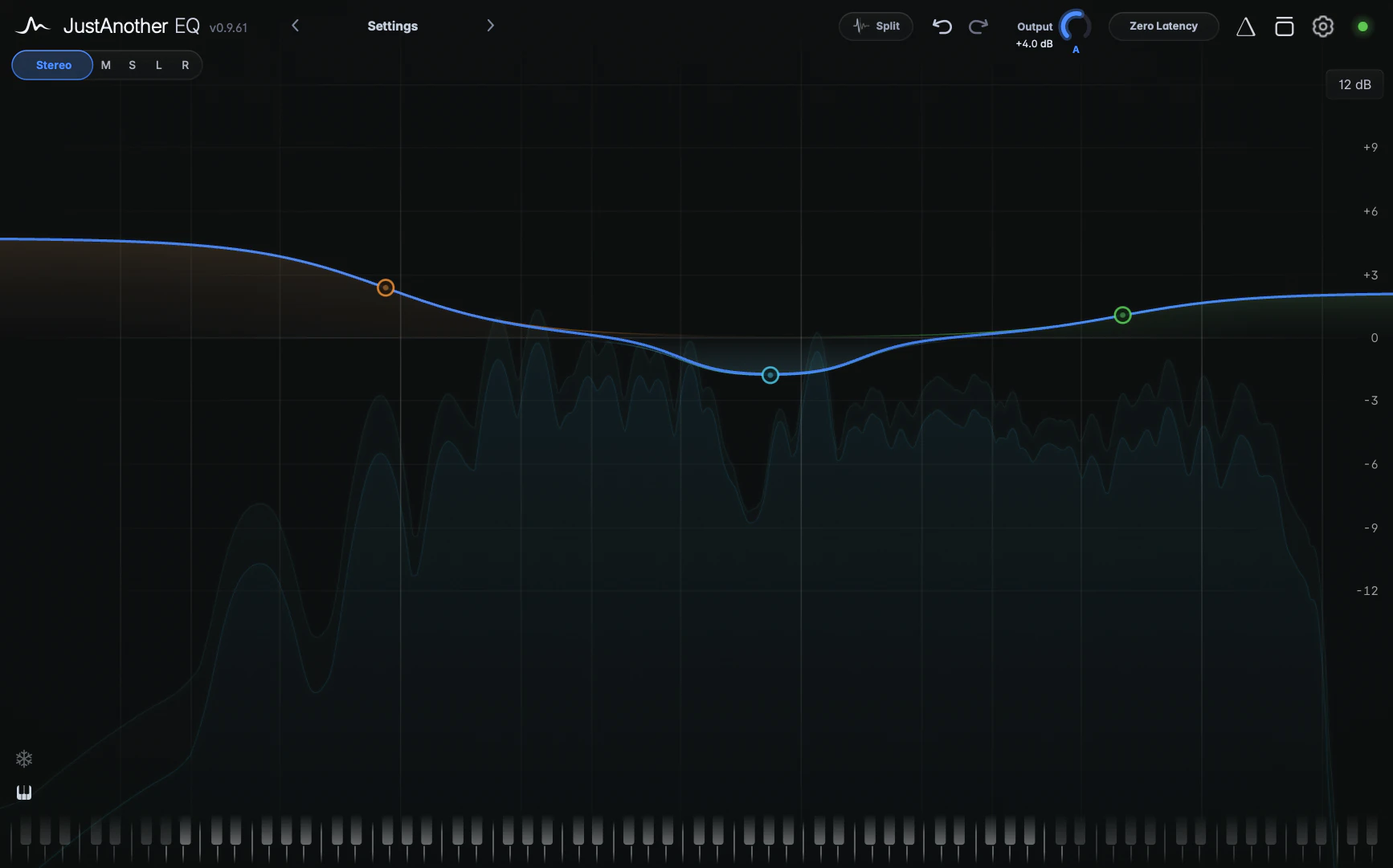
The output section sits in the header: the Output knob with its A (Auto Gain) button, and the Bypass icon further right. Output sets the final level, Auto Gain compensates for EQ loudness changes, and Bypass plays the unprocessed input with latency compensation.
Output knob
The Output knob sets the final level from -36 to +36 dB (default 0 dB). It’s the last gain stage, after all EQ, dynamics and saturation. Drag or scroll to change it, and double-click to reset it to 0 dB.
Auto Gain
Click the A under the Output knob to switch Auto Gain on (the letter turns blue). It compensates for the loudness change caused by the EQ, so processed and unprocessed signals can be compared at similar levels.
When you edit a band, Auto Gain first estimates the loudness change of your curve and applies the opposite gain. When you stop editing, it briefly measures the real signal, refines the estimate and then holds that value. So it’s not a leveller that rides the gain with the music: the compensation stays fixed until you change something again. The total correction is limited to -18 to +12 dB.
- It needs real audio to measure, so edit while audio is playing.
- It never compensates your own Output setting.
- There’s no readout of the applied amount. Check the final level by listening.
Bypass
Click the Bypass icon to hear your input without any processing: EQ, dynamics, saturation, Output and Auto Gain are all removed. The icon turns red and a BYPASS notice appears at the top of the graph.
The plugin’s bypass keeps processing active:
- Crossfade: the output switches to the dry signal with a short crossfade.
- Latency compensation: the dry signal is delayed by the plugin’s latency, so your host’s delay compensation stays aligned.
- Processing state: dynamics and Linear Phase keep running and return without warm-up. CPU use stays the same while bypassed.
Bypass is saved with your project, but not in presets, so loading a preset never switches it on or off.
Soft Bypass in Settings (on by default) keeps Channel Listen, split listen and sidechain listen audible while Bypass is on, playing the unprocessed signal through the same isolation. That gives you a level-matched before/after of just the Side, for example. With it off, Bypass pauses every monitoring mode.
Plugin Bypass or your DAW’s bypass?
Your DAW’s bypass stops processing completely, and processing restarts from silence when you switch it back on. Use the plugin’s own Bypass for A/B comparisons while mixing, and the DAW’s bypass when you want processing to stop, for example to save CPU on a finished track.
Tips
- Switch on Auto Gain before comparing with Bypass to reduce the level difference between processed and unprocessed signals.