Scales and Snap to scale
Snap to scale makes a tracked band step between the notes of a musical scale rather than follow every cent of the detected pitch. It holds the nearest scale note until the detected pitch moves to another snap target. Use it when a boost or cut should follow scale notes rather than small pitch variations.
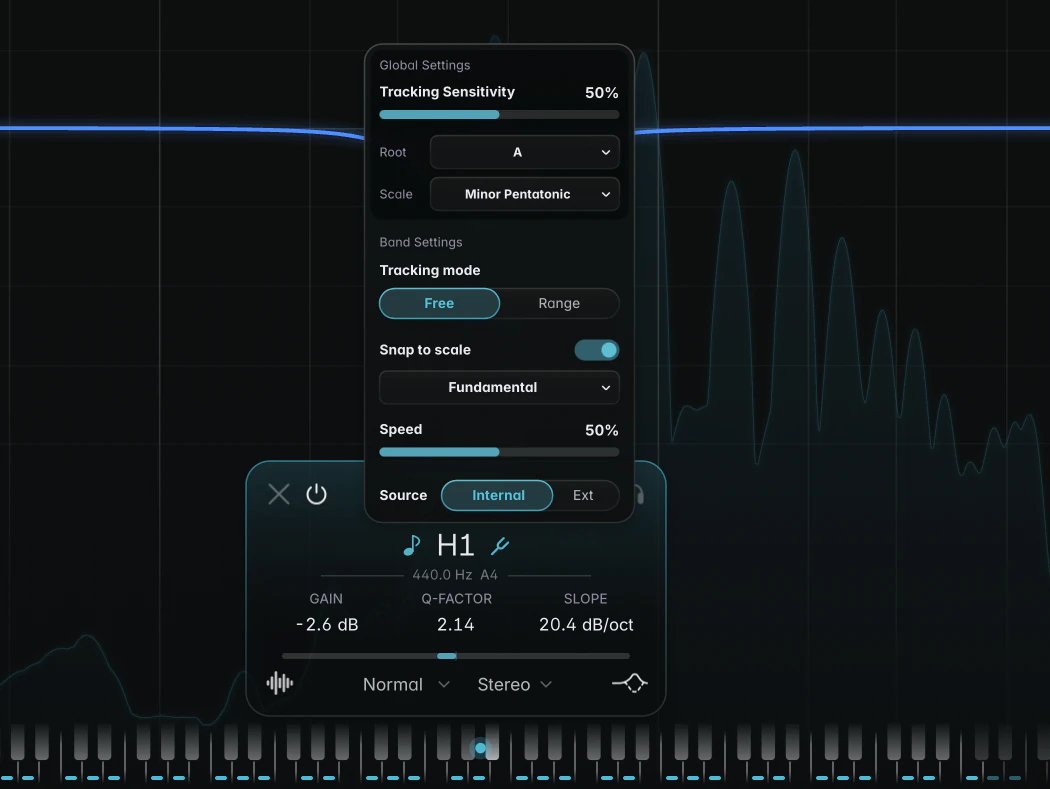
Turning it on
Open Pitch Tracking Settings for a tracked band and click the Snap to scale switch. The Root and Scale rows appear in Global Settings, and the Piano Roll switches on so you can see the allowed notes. Speed controls how quickly the band glides from note to note.
Snap target
A dropdown below the switch chooses what gets snapped:
- Fundamental (the default): the detected note is snapped to the scale, then the harmonic is applied. The harmonic relationship stays exact, so the band itself may land between scale notes.
- Band frequency: the band’s own frequency is snapped. It always lands on a scale note, but may drift slightly away from the exact harmonic.
Use Fundamental when the band chases a resonance tied to the note, and Band frequency when you want the band itself to sit on the scale.
Root and Scale
Root and Scale are global: every snapping band in this instance uses the same notes.
- Root: C to B, or Custom (default C).
- Scale (default Major): Major, Natural Minor, Harmonic Minor, Melodic Minor (asc.), Dorian, Phrygian, Lydian, Mixolydian, Locrian, Major Pentatonic, Minor Pentatonic, Minor Blues and Chromatic. Chromatic allows all twelve notes, so the band snaps to the nearest semitone.
Custom notes
Choose Custom as the Root to pick your own notes, starting from the current scale.
- Select a snapping band and click Select notes.
- Click keys on the Piano Roll to switch notes on or off. Each click toggles that note in every octave.
- Click Select notes again, or press Esc, to finish.
With a snapping band selected, small bars on the Piano Roll keys mark the allowed notes, and the key of the detected note is lit.
Notes
- In Range mode, if no scale note fits between the Low and High limits, the band holds its position and the popup shows “No snap targets in range”. Widen the limits or choose another scale.
- Root, Scale and the custom notes are saved with your session and presets, but can’t be automated.