Sidechain
The sidechain settings choose the signal a dynamic band uses for detection. By default, each band reacts to its own frequency range on its own track. The detector can also use Mid or Side, a different frequency window, or another track. For example, a kick can trigger a low-frequency cut on a bass, or a vocal can trigger a presence-range cut on guitars.
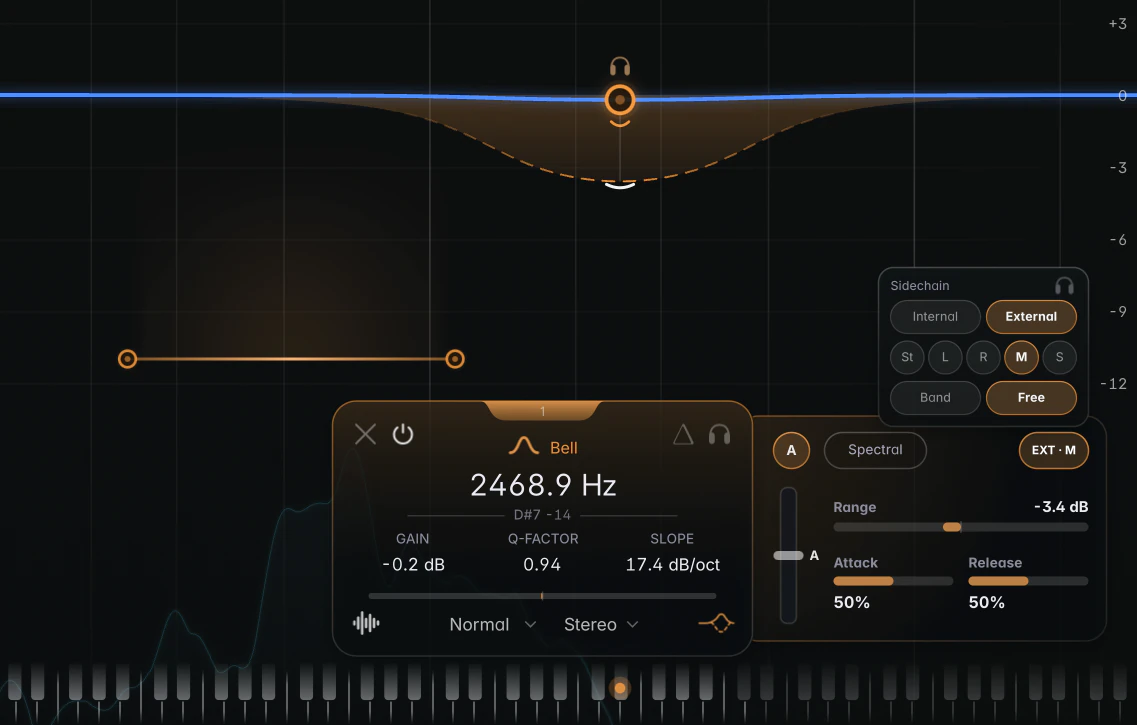
Click the sidechain pill at the top right of the Dynamics panel to open the Sidechain popup. The pill reads “INT” (internal) or “EXT” (external), and lights up in the band colour once the setup differs from the default.
Source: Internal or External
- Internal (the default): the band listens to the track it’s on.
- External: the band listens to the plugin’s sidechain input, so another track can trigger it. The input is called “Sidechain” in your host and stays off until you route something to it. See Using JustAnother EQ in your DAW for routing in common DAWs.
Channel
The channel row picks what the detector hears: St (Stereo), L, R, M (Mid) or S (Side). It’s independent of the band’s own channel, so a Stereo band can react to the Side signal while processing both channels. With Internal selected, the detector channel follows the band’s channel by default.
Detection range: Band or Free
In Broadband mode, a third row sets which frequencies the detector listens to:
- Band (the default): the band’s own region.
- Free: a window you set yourself on the graph, so a band can cut one region while reacting to another. For example, a wide High Shelf can soften the top end of a vocal, triggered only by sibilance between 5 and 9 kHz.
With Free chosen, two round range handles joined by a bar appear just above the band card. Drag a handle to move that edge, or drag the bar to slide the whole window. The window can span 10 Hz to 20 kHz. Spectral mode always listens within the band itself, so this row is hidden there.
Sidechain listen
Click the headphones icon in the popup’s header to hear the detector signal: the chosen source and channel, filtered to the band’s region or the Free window. Use it to check the trigger signal. It works for a single selected band and stops when you close the popup.
Tips
- In Broadband, changing the source, channel or detection range makes Auto Threshold learn again, so give it a moment of playback before you judge the result.
- All sidechain settings are saved with your session and in presets, and can be automated.